Widget integration
Connect the ALTCHA widget to Sentinel so that your security group's rules control each challenge. Sentinel requires widget v3 or later.
Prerequisites: a running Sentinel with an active license, and a public API key. See API keys & access levels and Managing API keys.
How it works
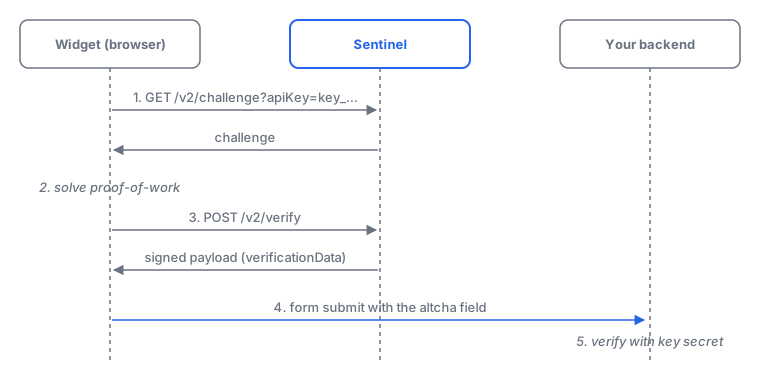
- The widget requests a challenge from
GET /v2/challengewith yourpublickey. The security group's rules run on this request: they can deny it, or tune the proof-of-work, require a code challenge, or turn on HIS. - The widget solves the proof-of-work in the browser.
- The widget sends the solution to the
verifyUrlreturned with the challenge (POST /v2/verify). Sentinel checks the solution, classifies the request and signs the result. - The widget puts the signed result into a hidden form field (
altchaby default). Your backend checks it before trusting the submission. See Verifying submissions.
The widget handles steps 1–4 on its own. You only set the challenge URL.
Step 1 — Embed the widget
Install the widget in your page as described in Widget integration, then set the widget's challenge attribute to your Sentinel challenge URL with the public key's id:
<form action="/contact" method="post">
  <input type="email" name="email" />
  <textarea name="message"></textarea>
  <altcha-widget
    challenge="https://sentinel.example.com/v2/challenge?apiKey=key_…"
  ></altcha-widget>
  <button type="submit">Send</button>
</form>
A public key's id is safe to put in a web page. It has no secret on the wire, and Sentinel accepts it only on the widget endpoints. The widget can send the key in two ways:
| Scheme | Example | Notes |
|---|---|---|
| Query parameter | ?apiKey=key_… (also apikey, api_key) | The usual choice for the widget. The value must start with key_. |
| Bearer header | Authorization: Bearer key_… | If the header is present, the query parameter is ignored. |
Don't use a restricted or full key here. The widget endpoints reject them with 403 PUBLIC_API_KEY_REQUIRED (or 403 BEARER_AUTH_PUBLIC_API_KEY when sent by id). See Error codes.
All other widget options (language, theme, display modes, workers) work as usual. See Widget integration.
Step 2 — Send form fields for classification (optional)
Add fields=1 to the challenge URL to have the widget send the form's fields to POST /v2/verify. Sentinel then classifies the email address and text (spam, injection, similarity) and signs the field names and a hash of their values into the result:
<altcha-widget
  challenge="https://sentinel.example.com/v2/challenge?apiKey=key_…&fields=1"
></altcha-widget>
The challenge response tells the widget what to send, in its configuration object:
{
  "configuration": {
    "serverVerificationFields": true,
    "serverVerificationTimeZone": true,
    "verifyUrl": "/v2/verify"
  },
  "parameters": { "algorithm": "PBKDF2/SHA-256", "cost": 5000, … },
  "signature": "f754a995…"
}serverVerificationFieldsistruewithfields=1(also?1ortrue). A security-groupclassifier.fieldsrule overrides the query parameter. See Rules reference.serverVerificationTimeZoneis alwaystrue: the widget sends the visitor's time zone, which Sentinel classifies as the location.- Sentinel accepts at most 200 fields, with names up to 200 and values up to 16000 characters.
Widget endpoints return their result directly, without the { "data": … } envelope of the rest of the API. Full schemas: GET /v2/challenge and POST /v2/verify.
Which fields the widget sends
The widget sends the non-empty values of the fields in its form that match serverVerificationFieldsSelector. The default selects text inputs, email inputs and textareas, except those marked data-no-spamfilter:
input[type="text"]:not([data-no-spamfilter]), input[type="email"]:not([data-no-spamfilter]), textarea:not([data-no-spamfilter])Password, hidden, phone and other inputs aren't sent. Mark fields that aren't prose, such as order or phone numbers, with data-no-spamfilter, so their values don't feed the text rules.
To choose the fields yourself, list their names in serverVerificationFieldNames, or set your own serverVerificationFieldsSelector. Set either in the configuration attribute or with .configure():
<altcha-widget
  challenge="https://sentinel.example.com/v2/challenge?apiKey=key_…&fields=1"
  configuration='{"serverVerificationFieldNames": ["email", "message"]}'
></altcha-widget>- Names win. A non-empty
serverVerificationFieldNamesreplaces the selector, and matches fields of any type with those names. Don't list password fields. - Widget 3.7.0. Both options, and email inputs in the default selector, need widget 3.7.0 or later. Earlier widgets send only
input[type="text"]andtextareafields; there, usetype="text" inputmode="email"for the email field so that Sentinel receives it. - The email address. Sentinel classifies one field as the email address: the field named
email, or else a value under 120 characters shaped like an address. The other fields are joined into the text.
serverVerificationFields itself still comes from Sentinel (fields=1 or classifier.fields); the two options only choose which fields are sent.
Step 3 — Add custom parameters (optional)
Query parameters named params.<name> are embedded in the signed challenge data. After a successful verification, Sentinel signs them into the result, so your backend can trust them:
<altcha-widget
challenge="https://sentinel.example.com/v2/challenge?apiKey=key_…¶ms.formId=contact"
></altcha-widget>| Limit | Value |
|---|---|
| Parameters per challenge | 10 (further ones are dropped) |
Name length (including params.) | 27 characters (longer names are truncated) |
| Value length | 100 characters (longer values are truncated) |
Your backend reads them back as params.formId in verificationData. See Custom parameters & fields.
Code challenge in the widget
When a security-group rule sets codeChallenge.enabled, the challenge response has a codeChallenge object. The widget shows the image, offers the audio button if audio is present, and sends the typed code as code to POST /v2/verify:
{
  "codeChallenge": {
    "audio": "/v2/challenge/audio/<token>.wav?apiKey=key_…",
    "image": "data:image/jpeg;base64,/9j/4AAQ…",
    "length": 5
  },
  "configuration": { … },
  "parameters": { … }
}audiois omitted when the server has no voices, a rule setscodeChallenge.audiotofalse, or no voice incodeChallenge.audioLanguagescan speak the code. The audio URL carries?apiKey=because the browser's<audio>element sends noAuthorizationheader.- A wrong or missing code returns
verified: falsewithINCORRECT_CODE; a code entered too quickly returnsTOO_FAST. Both burn the challenge, so the widget fetches a new one.
See Code challenge for the settings, audio and accessibility.
Human Interaction Signature in the widget
When a rule sets his.mode to monitor, relaxed or strict, the widget makes one extra round trip. GET /v2/challenge answers with a redirect instead of a challenge:
{ "his": { "url": "/v2/challenge" } }The widget then posts the interaction data it collected (pointer, touch, scroll, click, key and focus samples) to that URL, with the same query string, and receives the challenge:
POST /v2/challenge?apiKey=key_…¶ms.formId=contact
Content-Type: application/json
{ "his": { "pointer": [[412, 230, 1532], …], "scroll": [[0, 1610], …], … } }In relaxed or strict mode, a blocked visitor gets 403 HIS_BLOCKED and the widget shows an error. The widget's humanInteractionSignature option is on by default; if you turn it off, the widget fails when Sentinel requests HIS data. See Human Interaction Signature.
Serving Sentinel under a path or another domain
The URLs that Sentinel hands to the widget (verifyUrl, the HIS url, the code challenge audio) are relative. The widget resolves them against the challenge URL, so they work across domains.
If a reverse proxy serves Sentinel under a path prefix, set base_url on the listener that answers the widget. Its path prefixes those URLs:
[server]
# Sentinel is reachable at https://www.example.com/sentinel/
base_url = "https://www.example.com/sentinel"
With this setting, verifyUrl is /sentinel/v2/verify. The [server.public_api] and [server.admin_ui] listeners have their own base_url. See Listeners & reverse proxy and [server].
CORS
/v2/challenge, /v2/challenge/audio/… and /v2/verify allow any origin, with GET and POST and the Authorization and Content-Type headers. Cookies aren't allowed cross-origin. Refusals (rate limits, license errors) carry the CORS headers too, so the widget can show them.
Because any origin is allowed, restrict which sites may use a key with security-group rules on origin. See Security rules.
Existing /v1/challenge integrations
Widgets v3 or later whose challenge URL still points to /v1/challenge keep working if you turn on the /v1 aliases:
[server]
v1_compat = true
The aliases serve the /v2 routes, and the URLs handed to the widget stay on /v1 (for example verifyUrl: "/v1/verify"). Security-group rules still see /v2 paths. Move the widget to /v2/challenge when you can. See Listeners & reverse proxy.
The /v1/verify/signature alias also keeps the old route's contract for backends that haven't moved yet: it needs no credentials, and an optional secret in the body must be the secret of the payload's API key, else the answer is verified: false with reason: WRONG_API_KEY_SECRET. Move those backends to POST /v2/verify/signature with a restricted key; see Verifying submissions.
Native apps
The ALTCHA mobile widgets identify themselves with a User-Agent product token altcha-app/<version>, altcha-rn/<version> (React Native) or altcha-flutter/<version>. These are the default trusted apps: their requests score 0 on the device rules USER_AGENT_HEADER_UNCOMMON, CLI and LIBRARY, which would otherwise flag a non-browser User-Agent. All other rules still apply.
To change the list, set classifier.trustedApps in a security-group rule; an empty value trusts no app. See Rules reference.
Verify it works
Fetch a challenge with your key:
curl -s 'https://sentinel.example.com/v2/challenge?apiKey=key_…'You get a challenge with configuration.verifyUrl, or {"his":{"url":"/v2/challenge"}} when HIS is on. A 401 or 403 names the problem in code; see Error codes.
Next steps
- Verifying submissions: check the widget's result on your backend.
- Security groups: control what each challenge looks like.
- Request logs: see challenges and verifications as they happen.