Introduction to Sentinel
ALTCHA Sentinel is a self-hosted server for bot protection and spam detection. It issues ALTCHA challenges, verifies solutions, classifies submissions, and returns a signed result that your backend can trust.
Open-source ALTCHA gives you one mechanism: a proof-of-work challenge that your own server creates and verifies. Sentinel puts a full detection system behind the same widget. It looks at the device, the network, the location, and the submitted content, combines these signals into one decision, and decides what each visitor gets: a frictionless proof-of-work, a harder one, a code challenge, a rate limit, or a block.
Sentinel runs on your infrastructure as a single container. Your traffic and your users' data stay with you.
How a protected request flows
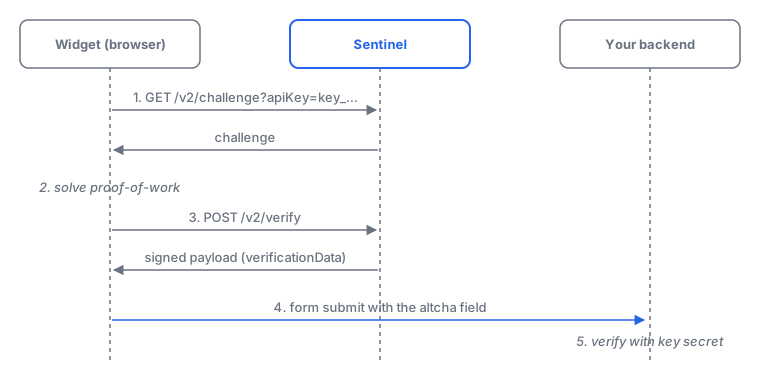
- Challenge. The ALTCHA widget on your page requests
GET /v2/challenge?apiKey=key_…. Sentinel evaluates the request against the rules of the API key's security group and returns a challenge sized to the risk: a light proof-of-work for ordinary visitors, a harder one or a code challenge for suspicious clients, or a refusal for blocked ones. - Solve. The widget solves the proof-of-work in the browser and, if required, asks the visitor for the code.
- Verify. The widget sends the solution to
POST /v2/verify. Sentinel checks it, classifies the request (and the form fields, if the widget sends them), and returns a payload signed with the API key's secret. ItsverificationDataholds the result:verified, theGOOD/NEUTRAL/BADclassification, the score, and the reasons. - Submit. The browser submits your form with the signed payload in the
altchafield. - Check. Your backend verifies the signature with the API key secret, or asks Sentinel to, and decides what to do with the submission. See Verifying submissions.
Sentinel never sits between the browser and your backend. If the widget can't reach Sentinel, your backend simply receives no valid payload and applies its own policy.
What Sentinel adds over open-source ALTCHA
| Open-source ALTCHA | Sentinel | |
|---|---|---|
| Challenge | Fixed proof-of-work from your server | Proof-of-work sized per request by rules; memory-hard algorithms (Argon2id, scrypt); code challenge with image and audio |
| Bot detection | Computational cost only | Device, network, and location risk; threat intelligence; Web Bot Auth for signed agents; Human Interaction Signature |
| Content screening | — | Spam, injection, and phishing detection in form fields; similarity to your training data; email analysis; optional AI decider |
| Abuse control | — | Rate limits per device or IP; a per-client penalty that escalates repeat offenders |
| Policy | Code in your server | Ordered security-group rules with presets and monitor mode, changed at runtime without a restart |
| Visibility | — | Admin UI with dashboard, request logs, audit logs, and alerts |
| Integration | Widget + your verification code | The same widget, pointed at Sentinel; a signed result your backend checks with one call |
If you already use the ALTCHA widget, moving to Sentinel changes its challenge URL and how your backend verifies the payload. Everything else stays the same.
Capabilities
Proof-of-work
Code challenge
Human Interaction Signature
Bots & AI agents
Threat intelligence
Rate limiting
Classifier
Text analysis
Similarity & campaigns
Email analysis
Phishing detection
AI decider
See the Features overview for how these combine into one decision.
Try it
The Get started guide takes you from nothing to a verified form submission in about 15 minutes. For a production deployment, start with Install, then read Concepts to learn how accounts, API keys, and security groups fit together.
Upgrading from v1
Sentinel v2 is a new server, not an in-place update: configuration moves to a TOML file, policy moves to security-group rules, and some v1 features are gone. Sentinel v1 remains supported for 18 months after v2 reaches general availability. See What's new in v2 for the highlights and Upgrading from v1 for the migration path.
Plans and legal documents
Sentinel needs a license; see Plans & Licensing and Pricing.