# Widget integration
> **Sentinel v2 (beta):** This page documents Sentinel v2, a beta rewrite that may change before the stable release. It does not apply to Sentinel v1, the current stable version: see the [Sentinel v1 documentation](/docs/sentinel.md).
Connect the ALTCHA widget to Sentinel so that your security group's rules control each challenge. Sentinel requires widget v3 or later.
Prerequisites: a running Sentinel with an active license, and a `public` API key. See [API keys & access levels](/docs/sentinel/v2/concepts/api-keys/) and [Managing API keys](/docs/sentinel/v2/policies/api-keys/).
## How it works
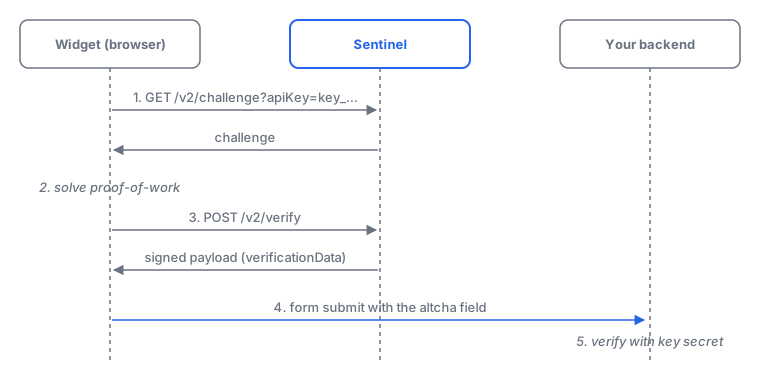
1. The widget requests a challenge from `GET /v2/challenge` with your `public` key. The security group's rules run on this request: they can deny it, or tune the proof-of-work, require a code challenge, or turn on HIS.
2. The widget solves the proof-of-work in the browser.
3. The widget sends the solution to the `verifyUrl` returned with the challenge (`POST /v2/verify`). Sentinel checks the solution, classifies the request and signs the result.
4. The widget puts the signed result into a hidden form field (`altcha` by default). Your backend checks it before trusting the submission. See [Verifying submissions](/docs/sentinel/v2/integrate/verification/).
The widget handles steps 1–4 on its own. You only set the challenge URL.
## Step 1 — Embed the widget
Install the widget in your page as described in [Widget integration](/docs/integration/widget/), then set the widget's `challenge` attribute to your Sentinel challenge URL with the `public` key's id:
```html
```
A `public` key's id is safe to put in a web page. It has no secret on the wire, and Sentinel accepts it only on the widget endpoints. The widget can send the key in two ways:
| Scheme | Example | Notes |
| --- | --- | --- |
| Query parameter | `?apiKey=key_…` (also `apikey`, `api_key`) | The usual choice for the widget. The value must start with `key_`. |
| Bearer header | `Authorization: Bearer key_…` | If the header is present, the query parameter is ignored. |
Don't use a `restricted` or `full` key here. The widget endpoints reject them with `403 PUBLIC_API_KEY_REQUIRED` (or `403 BEARER_AUTH_PUBLIC_API_KEY` when sent by id). See [Error codes](/docs/sentinel/v2/reference/errors/#api-keys-and-security-rules).
All other widget options (language, theme, display modes, workers) work as usual. See [Widget integration](/docs/integration/widget/).
Sentinel v2 serves only proof-of-work v2 challenges. Widgets up to 2.x (SHA challenges, `X-Altcha-Config`) don't work. Upgrade to widget v3 or later. See [Breaking changes](/docs/sentinel/v2/upgrade/breaking-changes/).
## Step 2 — Send form fields for classification (optional)
Add `fields=1` to the challenge URL to have the widget send the form's fields to `POST /v2/verify`. Sentinel then classifies the email address and text (spam, injection, similarity) and signs the field names and a hash of their values into the result:
```html
```
The challenge response tells the widget what to send, in its `configuration` object:
```json
{
"configuration": {
"serverVerificationFields": true,
"serverVerificationTimeZone": true,
"verifyUrl": "/v2/verify"
},
"parameters": { "algorithm": "PBKDF2/SHA-256", "cost": 5000, … },
"signature": "f754a995…"
}
```
- `serverVerificationFields` is `true` with `fields=1` (also `?1` or `true`). A security-group `classifier.fields` rule overrides the query parameter. See [Rules reference](/docs/sentinel/v2/reference/rules/#classifier).
- `serverVerificationTimeZone` is always `true`: the widget sends the visitor's time zone, which Sentinel classifies as the location.
- Sentinel accepts at most 200 fields, with names up to 200 and values up to 16000 characters.
Widget endpoints return their result directly, without the `{ "data": … }` envelope of the rest of the API. Full schemas: [`GET /v2/challenge`](/sentinel-api-docs-v2.html#tag/challenge/GET/v2/challenge) and [`POST /v2/verify`](/sentinel-api-docs-v2.html#tag/verify/POST/v2/verify).
### Which fields the widget sends
The widget sends the non-empty values of the fields in its form that match `serverVerificationFieldsSelector`. The default selects text inputs, email inputs and textareas, except those marked `data-no-spamfilter`:
```css
input[type="text"]:not([data-no-spamfilter]), input[type="email"]:not([data-no-spamfilter]), textarea:not([data-no-spamfilter])
```
Password, hidden, phone and other inputs aren't sent. Mark fields that aren't prose, such as order or phone numbers, with `data-no-spamfilter`, so their values don't feed the text rules.
To choose the fields yourself, list their names in `serverVerificationFieldNames`, or set your own `serverVerificationFieldsSelector`. Set either in the `configuration` attribute or with `.configure()`:
```html
```
- **Names win.** A non-empty `serverVerificationFieldNames` replaces the selector, and matches fields of any type with those names. Don't list password fields.
- **Widget 3.7.0.** Both options, and email inputs in the default selector, need widget 3.7.0 or later. Earlier widgets send only `input[type="text"]` and `textarea` fields; there, use `type="text" inputmode="email"` for the email field so that Sentinel receives it.
- **The email address.** Sentinel classifies one field as the email address: the field named `email`, or else a value under 120 characters shaped like an address. The other fields are joined into the text.
`serverVerificationFields` itself still comes from Sentinel (`fields=1` or `classifier.fields`); the two options only choose which fields are sent.
## Step 3 — Add custom parameters (optional)
Query parameters named `params.` are embedded in the signed challenge data. After a successful verification, Sentinel signs them into the result, so your backend can trust them:
```html
```
| Limit | Value |
| --- | --- |
| Parameters per challenge | `10` (further ones are dropped) |
| Name length (including `params.`) | `27` characters (longer names are truncated) |
| Value length | `100` characters (longer values are truncated) |
Your backend reads them back as `params.formId` in `verificationData`. See [Custom parameters & fields](/docs/sentinel/v2/integrate/parameters/).
## Code challenge in the widget
When a security-group rule sets `codeChallenge.enabled`, the challenge response has a `codeChallenge` object. The widget shows the image, offers the audio button if `audio` is present, and sends the typed code as `code` to `POST /v2/verify`:
```json
{
"codeChallenge": {
"audio": "/v2/challenge/audio/.wav?apiKey=key_…",
"image": "data:image/jpeg;base64,/9j/4AAQ…",
"length": 5
},
"configuration": { … },
"parameters": { … }
}
```
- `audio` is omitted when the server has no voices, a rule sets `codeChallenge.audio` to `false`, or no voice in `codeChallenge.audioLanguages` can speak the code. The audio URL carries `?apiKey=` because the browser's `